Chapter 3 BLAST
Lets take a moment to review some terminology.
- Unix - An operating system analogous with Windows.
- Shell - This is the interface we use to talk to the computer. If we are able to use the mouse to point and click we are using a Graphical User Interface (GUI). If we are only typing text commands, we are using a Command Line Interface (CLI). We will be using a CLI in these workshops.
- Command-line and Terminal - A text-based environment for sending commands to a computer’s operating system or to an application. The terminal is the app that gives you access to the operating system’s command line. It’s called terminal because there literally used to be a tv screen at the end (terminus) of a cable from a mainframe computer.
- bash - For the operating system to understand your commands, you need to follow a set of rules (known as a syntax), which collectively are known as a language. bash is one of these languages. When you write a series of bash-syntax commands, it is known as a bash script. Scripts are used to automate large amounts of bioinformatic work. Often, we use the term pipeline instead of script, because we think of bioinformatic work as moving data files from one transformation to the next, connected by pipes. In fact, bash has a pipe character that does exactly this:
|. (This is not a number 1 or the capital letter I. It is a separate character on your keyboard.
Make sure that you are working in the Terminal, where you will run commands in the bash language, and NOT in the Console, which is RStudio’s name for a special terminal that runs the R language. You will be running commands in the Terminal. (N.B. If RStudio goes to sleep and you resume it, RStudio will put you in the Console, not the Terminal, so you have to click on the Terminal tab to get back to the Terminal.)
3.1 Directories and their structure
Working with text-based interfaces, where you are writing and running commands, means that we need to have some understanding of how files are organised within directories (“folders”) and why it’s important to know which directory you are working in. Basically, you cannot open a file by pointing at it in a window. You need to write down the address to the file, which is known as the file’s path. To do that, you need to have a starting point for the path.
Under Files in the bottom right panel of your screen you will see a file with the ending .Rproj. This is an R project file which tells R your starting point for navigating directories. It means that R will automatically treat the directory with the .Rproj file as the working directory. If you wish to access files outside of the working directory, you need to tell the program the file path to the file(s).
Look at the top of the File panel. You will see the file path to whatever directory is active in the File tab.
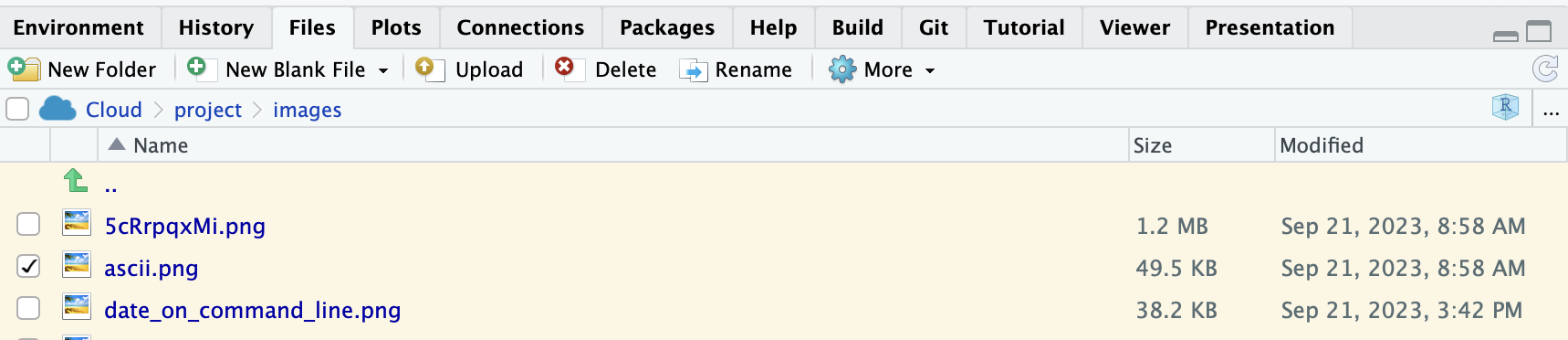
Figure 3.1: The current directory in this image is /cloud/project/images/, where I use the final / to indicate that images/ is a directory, not a file. In Posit.cloud, /cloud is the ‘root’ directory. If a file’s path is written out all the way from the root, it is known as the absolute path, e.g./cloud/project/images/ascii.png
3.1.1 Moving around folders/directories
Look in the ‘Files’ tab in the panel to the bottom right. You should have two directories stored there, called;
- code/
- data/
plus some individual files, which are used during programming
- .gitignore
- .Rhistory
- project.Rproj
(If you don’t see these files, click on the word “project” in “Cloud > project” near the top of the Files tab, and you should get there.)
You can move around folders (=directories) in the command line, and it’s good to be comfortable doing this. Make sure you are in the Terminal tab in the panel to the bottom left and go to the /cloud/project directory with the cd command. (cdis shorthand for change directory, and remember to hit enter).
cd /cloud/projectBecause we use /cloud/ at the beginning, we are using the absolute path to the project/ directory. Now list the files in this directory.
ls -lFThe ls command is shorthand for list, the -l argument means long listing format, and the -F argument means to classify the items by their type. Unix allows you to combine arguments into a single thing, to speed up typing. So ls -l -F is usually written as ls -lF. One way to think about Unix is that the commands are designed by people who like to use the command line but hate the act of typing, so all the commands are very short. If you get good at Unix, you will become like this.
The terminal should return something that looks like this, and you will see that code/ and data/ are directories (because of the forward slashes).
/cloud/project$ ls -lF
total 12
drwxrwx--- 2 r574796 rstudio-user 4096 Sep 22 07:07 code/
drwxrwx--- 6 r574796 rstudio-user 4096 Sep 22 06:56 data/
-rw-rw-r-- 1 r574796 rstudio-user  205 Sep 22 11:07 project.Rproj
Let’s go and have a look at the files held within data/. Use following command to navigate into data/;
cd data # or cd data/ either syntax works.now your working directory is data/. List the files in this directory with
ls -lFThe terminal should return something that looks like this, showing four subdirectories underneath the data/ directory (which is itself a subdirectory of project/
/cloud/project/data$ ls -lF
total 16
drwxrwx--- 2 r574796 rstudio-user 4096 Sep 22 06:56 blast/
drwxrwx--- 2 r574796 rstudio-user 4096 Sep 22 06:56 databases/
drwxrwx--- 2 r574796 rstudio-user 4096 Sep 22 06:56 query/
drwxrwx--- 2 r574796 rstudio-user 4096 Sep 22 06:56 refseq/
So you can see that you can use the commands cd and ls to move around and look inside your directories.
Note - if you want to move back up a directory level you can use cd ... The two dots together .. means up in bash syntax, and you can also see the two dots at the top of the file list in the Files panel. If you click on those two dots, you also move up a directory level.
Use cd, ls and cd .. to explore the directories available to you in your project.
3.1.2 Paths
So hopefully you are starting to get comfortable moving between directories in the terminal. Here I will briefly introduce you to paths. Type in the following so that everyone is in the same location;
cd /cloud/project/If you want to enter some commands from this location that use the mouse.1.protein.faa file stored in the refseqdirectory, you will need to provide a path for the location of that file. These paths can either be absolute or relative.
Relative paths provide a pathway from your current directory (which is currently /cloud/project/). So to get to the directory where your mouse.1.protein.faa file is you could use the following path;
cd data/refseqHowever if you are currently, say, in the databases/ directory, this (relative) path won’t work because your computer will be looking for directories it can’t see. This is where absolute paths come in useful.
Absolute paths specify the location of a file or directory starting from your root directory (the topmost directory). So it doesn’t matter which directory you are currently in, the absolute pathname will go to the right place. In this case the absolute path is:
cd /cloud/project/data/refseqHave a go at using both absolute and relative paths with the cd command to move around your directories.
3.2 File types
When we look at sequence data there are a number of file types that you will regularly come into contact with. The most common of these are .fastq and .fasta files, which are appended to filenames as suffixes. This is purely for your convenience. You could have a different suffix, or even no suffix, but if you do, you will confuse yourself and others as to the content and format of your files, so that’s why we use filename suffixes. Here we will have a look at some key features and differences of these file types.
Fastq files are used as a data storage file for the output from Illumina sequencers. The structure of a .fastq file is very uniform. Each DNA sequence has four lines dedicated to it.
- Line 1 - begins with an ‘@’ character and is followed by an identifier and optional description. It contains information about the sequencer, the flow cell, index number, the precise location within the flow cell where the sequence comes from, etc. The identifier is unique to each sequence.
- Line 2 - is the DNA sequence
- Line 3 - a ‘+’ character (and sometimes a repeat of line 1)
- Line 4 - computer-readable information relating to the quality of each nucleotide in the sequence in line 2. Therefore, there are as many quality characters as sequence characters. The letters indicate the probability of error and are known as
phredscores, coded as ASCII characters. For example, the phred ASCII codeAtranslates to a score of 32, which means that there is a \(1/1585\) probability that the nucleotideGis incorrect - See https://en.wikipedia.org/wiki/Phred_quality_score
An example of three sequences from an Illumina sequencer in fastq format is shown below. Note that there is no empty line between the three sequences.
@NB501793:9:H77L2BGX2:1:11101:26113:7113 1:N:0:ATCACGAT
GCATGTCTCTAGTTCCGGAACCAAAATCTCCTCCACCCACTCTGCGTCCTGCTGACTATAGGAGATAAAGGCGTCATAGCAGAGGGTGGCGCCTCCTTGGTGCACCGCCGGCTTTCGCTTCGCCTTAAACCAGGCGACGGACATTTTCAGG
+
AAAAAEEEEEEEEEEEEEEEEEEEEEEEEEEEEEEEEEEEEEEEEEEEEEEEEEEEEEEEEEEEEEEEEEEEEEEEEEEEAEEEEEEEEEAEEEEEEEEEEEEEEAAEEEEEEEEEAAEE<AEEEEEEEEEEEEEEEEEEAEEEEEEE<EA
@NB501793:9:H77L2BGX2:1:11101:24170:10019 1:N:0:ATCACGAT
GCATGTCAACATCATTCTTGTTTTGTTAGAGCCACTACCTACATATCTTATCCCTTCCAAGTACTACCAGCTAAAGGCAATGATACATGC
+
AAAAAEA/EEEE/EEEEEEEEEEEAEEEEEEEEEEEEEEEEEEEEEAEAEAEEEAEEEEEEEEEEEEEEAEEE/EEEEEEAE/E/AEEAE
@NB501793:9:H77L2BGX2:1:11101:7027:14110 1:N:0:ATCACGAT
GCATGTGATGTTGTGTTTTTGTACTCTCCTCTCACTTTGTCCAAAGTGAGTGGTGTCATTATGAGTTGTATTTTGCTAACCACCAGAGACTAACACGAGGGCTGGACAACATCATTCTAGTTTTGTTAGAGCCACTACCTACATATC
+
AAA/AEEEEEEEEEEEEEEEEAEAAEEEEAAEEEEEEE/EEEAEEEEA/EE6EEEEEEEEEEEE6EE/EAEEE/EEEAAEAEEE/EEEEEE6EEEAE/<EAEEEEEE/EEAEEAE<E//AE<</EAEA//<<<A6AE/EEEE/A/EA
Fasta files are a simpler (and thus smaller) text-based file format for representing both nucleotide and amino acid sequences. These can be produced from fastq files (However, fastq files cannot be produced from fasta files; comparing the two formats (above and below), can you figure out why?). Each sequence in .fasta format comes with a header line which is marked by a ‘>’ character prefix. Information following the ‘>’ typically contains a sequence identifier and an optional description of the sequence. A lot of bioinformatic programming adds and subtracts information from the fasta header line.
An example of three sequences from an Illumina sequencer in .fasta format is shown below. You may notice that these are the same sequences as shown above in the fastq example; typically, the header lines in fasta files are more human-readable (i.e. not >NB501793:9:H77L2BGX2:1:11101:26113:7113 1:N:0:ATCACGAT)
>NB501793:9:H77L2BGX2:1:11101:26113:7113 1:N:0:ATCACGAT
CTCTAGTTCCGGAACCAAAATCTCCTCCACCCACTCTGCGTCCTGCTGACTATAGGAGATAAAGGCGTCATAGCAGAGGGTGGCGCCTCCTTGGTGCACCGCCGGCTTTCGCTTCGCCTTAAACCAGGCGACGGACATTTTCAGG
>NB501793:9:H77L2BGX2:1:11101:24170:10019 1:N:0:ATCACGAT
CAACATCATTCTTGTTTTGTTAGAGCCACTACCTACATATCTTATCCCTTCCAAGTACTACCAGCTAAAGGCAATGATACATGC
>NB501793:9:H77L2BGX2:1:11101:7027:14110 1:N:0:ATCACGAT
GATGTTGTGTTTTTGTACTCTCCTCTCACTTTGTCCAAAGTGAGTGGTGTCATTATGAGTTGTATTTTGCTAACCACCAGAGACTAACACGAGGGCTGGACAACATCATTCTAGTTTTGTTAGAGCCACTACCTACATATC
Now, let’s have a look at your data. The /cloud/project/data/refseq directory contains files downloaded from the NCBI Reference Sequence project. These files comprise a set of transcript and protein sequences for the mouse and zebrafish model systems and were downloaded from the NCBI.
Use your newfound command line tools to move into the refseq directory. When you run ls -lFh you should see the following:
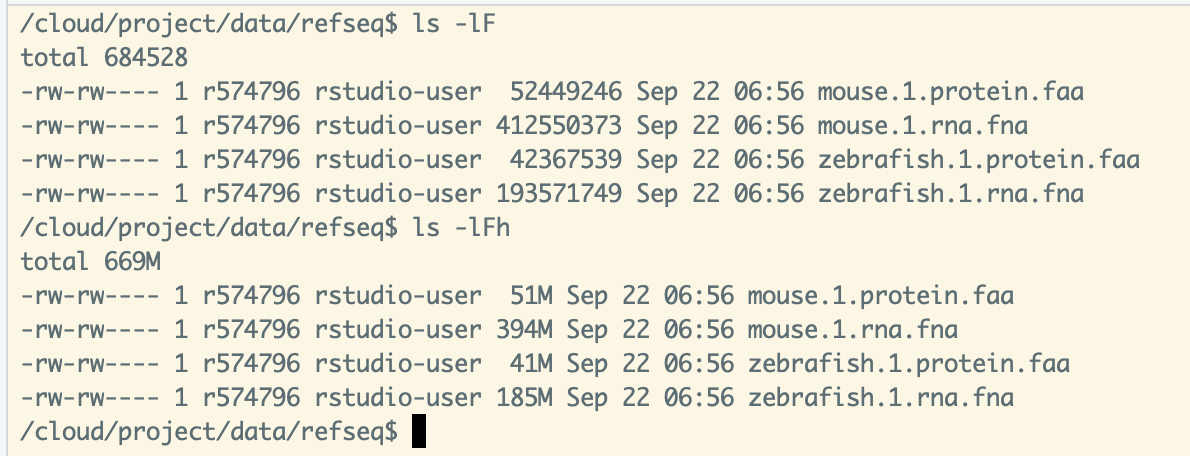
Figure 3.2: Using the extra argument -h makes the file sizes human readable.
Use the head command to have a look at the first few lines of each of the four files stored in refseq. An example of the head command’s usage is as follows;
head mouse.1.protein.faa What differences do you notice about the four files? Do you think these are .fastq or .fasta files?
You might have noticed the two file suffixes (also known as file extensions): .faa and .fna. These file suffixes tell you something about the content of the file. Can you work out what .faa and .fna mean?
That ends our review of Unix. Now let’s do something bioinformatics-y!
3.3 Basic Local Alignment Search Tool (BLAST)
The acronym BLAST stands for Basic Local Alignment Search Tool. It is a very versatile and useful program, frequently used in bioinformatic analysis to find close (and not-so-close) nucleotide or protein sequence matches in a database. It has a range of uses, including assisting in the identification of sequences and assessing evolutionary relationships between sequences. There are different types of BLAST that work with nucleotide or amino acid input sequences.
You might have previously uploaded sequences to the NCBI website and used their BLAST tool from a web browser. Running BLAST on the NCBI website compares your query sequence against the entirety of GenBank, which is enormous. Here we will run BLAST from the command line against a local database.
3.3.1 Making a BLAST database
In order to run BLAST, we first need to make some suitable BLAST databases. Initially we will be using sequences from our mouse refseq files as queries to “blast against” databases made from our zebrafish refseq files. So let’s convert our refseq zebrafish files into blast databases. Run the following command in the terminal;
{bash}
cd /cloud/project

makeblastdb -in /cloud/project/data/refseq/zebrafish.1.rna.fna -dbtype nucl -title zebrafish.1.rna -out /cloud/project/data/databases/zebrafish.1.rna
Take a moment to break down this command. The command is makeblastdb. The first argument -in tells makeblastdbwhich file(s) you want to turn into a database. You chose to indicate the file with an absolute pathname, which means that you can run the command from anywhere in the computer and still find the file. You have also given instructions on what type of database you wish to produce (i.e. a nucleotide database) using the argument -dbtype nucl and finally indicated where you want the output database to be stored, using the argument -out /cloud/project/data/databases/zebrafish.1.rna, again using an absolute pathname.
Note that one of things you have to think about constantly is file naming. My preference is for longer filenames that explain what a file contains and what happened to it.
Sometimes it helps to write and read a command vertically so that you can see all the arguments (debugging is easier too). Unfortunately, you can’t copy and paste the command like this.
makeblastdb -in /cloud/project/data/refseq/zebrafish.1.rna.fna
-dbtype nucl
-title zebrafish.1.rna
-out /cloud/project/data/databases/zebrafish.1.rna
After running the command, use the cd and ls commands to go to /cloud/project/data/databases/ and have a look at the new files stored there. There should be three files all starting with zebrafish.1.rna, and they should have .nhr, .nin, .nsq file extensions. This is how BLAST likes to store its databases.
Now try and make a similar database for the zebrafish.1.protein.faa refseq file. You will need to instruct makeblastdb to make a prot (protein) database instead of a nucl database. Check your results in /cloud/project/data/databases/. Once again there should be three files, and they should have .phr, .pin and .psq file extensions.
3.3.2 Finding a query
So hopefully you have a protein and a nucleotide database prepared. Now we need to decide on suitable query sequences. We could use an entire mouse refseq file as our set of query sequences, but that would take a long time because the refseq file contains many sequences.
Instead, let’s take a single entry from the mouse protein refseq file instead. We do this in the command line with the Unix utility program awk, which is used for querying and extracting rows from tabular data files. In bioinformatics, it is frequently used for filtering sequence files.
For now, I would like you to use the awk command below; this will copy lines 5 and 6 of the mouse.1.protein.faa file and paste them in a new file called mouse.1.protein.1.faa in the query directory.
awk 'NR==5 , NR==6' /cloud/project/data/refseq/mouse.1.protein.faa > /cloud/project/data/query/mouse.1.protein.1.faaUse head to look at the contents of the mouse.1.protein.1.faa file in the query directory. It should look like this;
>YP_220552.1 cytochrome c oxidase subunit I (mitochondrion) [Mus musculus domesticus]
MFINRWLFSTNHKDIGTLYLLFGAWAGMVGTALSILIRAELGQPGALLGDDQIYNVIVTAHAFVMIFFMVMPMMIGGFGNWLVPLMIGAPDMAFPRMNNMSFWLLPPSFLLLLASSMVEAGAGTGWTVYPPLAGNLAHAGASVDLTIFSLHLAGVSSILGAINFITTIINMKPPAMTQYQTPLFVWSVLITAVLLLLSLPVLAAGITMLLTDRNLNTTFFDPAGGGDPILYQHLFWFFGHPEVYILILPGFGIISHVVTYYSGKKEPFGYMGMVWAMMSIGFLGFIVWAHHMFTVGLDVDTRAYFTSATMIIAIPTGVKVFSWLATLHGGNIKWSPAMLWALGFIFLFTVGGLTGIVLSNSSLDIVLHDTYYVVAHFHYVLSMGAVFAIMAGFVHWFPLFSGFTLDDTWAKAHFAIMFVGVNMTFFPQHFLGLSGMPRRYSDYPDAYTTWNTVSSMGSFISLTAVLIMIFMIWEAFASKREVMSVSYASTNLEWLHGCPPPYHTFEEPTYVKVK
Note that
refseq.fastahas a.fastafile suffix, and when you look inside, it indeed has been formatted as a fasta file, so that each entry has two lines: one header line, one sequence line. (yes, the sequence is one line; it just wraps around) This means odd numbered lines are headers and even numbered lines are the corresponding sequences. Note that bioinformaticians have written lots of utility programs that let us query, extract, and edit sequence files and are easier to use than the base Unix programs likeawk,grep, andsed. But even so, i often find myself using basic Unix utility programs.
3.3.3 BLASTp
Now that we have prepared a query and database we can start to run some BLASTs. Our query is from the protein refseq files, so we will run BLASTp against the protein zebrafish database. Run the following command;
blastp -query /cloud/project/data/query/mouse.1.protein.1.faa -db /cloud/project/data/databases/zebrafish.1.protein -out /cloud/project/data/blast/mouse.1.protein.x.zebrafish.txt It is helpful to read this command without the long pathnames and written vertically. There are three arguments: -query, -db, and -out
Take a look at the default output from this BLAST search, use:
less is yet another Unix utility program that lets you look at portions of really long files (see less than the whole).
Type Enter to scroll through the file, and use q when you’re ready to quit. You will see that this default output contains a lot of information, including information relating to significant database hits, significance scores and alignments. We only have three hits here, so its easy enough to process in this format, but sometimes you may have much larger outputs. In this case a tabular format is much more desirable. Try running the following command;
(Remember to have typed q to get out of the less command. You need to be back at the command line.)
blastp -query /cloud/project/data/query/mouse.1.protein.1.faa -db /cloud/project/data/databases/zebrafish.1.protein -out /cloud/project/data/blast/mouse.1.protein.x.zebrafish.2.tsv -outfmt 6Now we have added one more argument: -outfmt 6, which means output format number 6.
Use head to have a look at this new presentation of information (remember to include the correct path). The output this time is a tabular format, which is much easier to process quickly especially when you are looking at large data sets. I have pasted a bit of the output you should be looking at below with the column headers added. You can read all about output format 6 here.
qseqid sseqid pident length mismatch gapopen qstart qend sstart send evalue bitscore
YP_220552.1 NP_059333.1     88.132  514 61  0   1   514 1   514 0.0 877
YP_220552.1 XP_021326074.1  31.818  66  32  2   427 482 16  78  6.7 29.3
YP_220552.1 NP_001373511.1  31.818  66  32  2   427 482 48  110 7.5 29.6
Your query sequence is YP_220552.1, and it matched three sequences in the protein database. The topmost row is the best match, which you can tell by reading the second-to-last (evalue) and last (bitscore) columns. evalue is the probability of getting a match this good in a random database of the same size. Here, evalue has been rounded to 0.0, which just means that the probability is very small (but not strictly 0). The bitscore value is the “size of a random sequence database in which the current match could be achieved just by chance”. In this case, the bitscore number is high (877), and the database size is \(2^{877}\), which is astronomically high. To have a random sequence match your query sequence this well, you would have needed a gigantic random sequence. In short, the topmost reference sequence, NP_059333.1, is a really good match to your query sequence, YP_220552.1.
See here for more details on evalue and bit score.
The problem with output format 6 is that you can’t see any additional information about your reference sequence NP_059333.1. But since you now have the reference sequence identifier, you can search and extract the relevant information from the original refseq file. For this we can use grep, which is the Unix equivalent of the Find function in your word processor. Try the following command:
grep -n "NP_059333.1" /cloud/project/data/refseq/zebrafish.1.protein.faa > /cloud/project/data/NP_059333.1_zebrafish.txtHere we are asking grep to look for lines containing the sequence identifier NP_059333.1 in our refseq zebrafish protein fasta file. Once found, grep puts those lines into a new text file within the data directory NP_059333.1_zebrafish.txt. The -n flag tells grep to also report the line number.
Q. How did we tell grep to put the output in a new file? - Click here for Answer
We used the > character, which is known as a redirect character. It is redirecting, because if you hadn’t used > /cloud/project/data/NP_059333.1_zebrafish.txt, grep would have sent the output to the standard place, which is the screen.
Navigate to this newly made text file and use either less or head to view it. Compare the header information from our query and the top hit from our blast database. Do the results make sense?
Q. What species does the sequence come from? - Click here for Answer
209:>NP_059333.1 cytochrome c oxidase subunit I (mitochondrion) [Danio rerio]
(Thus, the species is Danio rerio, which is the zebrafish.)
3.4 Formative work
3.4.1 Write your own blastn query
Try repeating the process with a new query. Use awk to extract lines 4121 and 4122 from the mouse nucleotide refseq files (Q: how many sequences do you get when you extract 2 lines?). Then use blastn (not blastp!) to BLAST your new query against the zebrafish nucleotide database and create a new output file in output format 6 and use grep to extract the top hit from the zebrafish RNA refseq file.
Q. Write the code first and then check here.
# preceding text with a hashtag tells programs like bash and R not to try to run the text as a command.
# mouse

awk 'NR==4121, NR==4122' /cloud/project/data/refseq/mouse.1.rna.fna > /cloud/project/data/query/mouse.1.rna.query.fna

blastn -query /cloud/project/data/query/mouse.1.rna.query.fna -db /cloud/project/data/databases/zebrafish.1.rna -out /cloud/project/data/blast/mouse.1.rna.query.zebrafish.1.tsv -outfmt 6

head /cloud/project/data/blast/mouse.1.rna.query.zebrafish.1.tsv
# the top hit sequence is: NM_001347668.1

grep -n "NM_001347668.1" /cloud/project/data/refseq/zebrafish.1.rna.fna > /cloud/project/data/NM_001347668.1_zebrafish.txt

head /cloud/project/data/NM_001347668.1_zebrafish.txt

# 111407:>NM_001347668.1 Danio rerio thyroid hormone receptor interactor 12 (trip12), mRNA
# in other words, the mouse nucleotide sequence is most similar to the zebrafish thyroid hormone receptor interactor 12 (trip12) gene, which gives you a clue as to the function of the mouse gene.
3.4.2 Write your own blastx query
Now you are confident with BLASTp and BLASTn, we can look at BLASTx. blastx is a great way to increase the power of your search, especially if you have an unknown sequence and are trying to work out which gene family it may belong to or if you are trying to identify protein coding genes. It takes a nucleotide query and translates the sequence using all six possible reading frames (so all three possible codons for both forward and reverse complement) and blasts the results against a protein database.
You have been given an unknown nucleotide sequence from a Corydoras catfish species, /cloud/project/data/query/unknown_cory.fasta. Use the blastx and grep commands to try to work out what gene it most closely matches in zebrafish.
Q. Write the code first and then check here.
# Corydoras
# with blastx, the query sequence is a nucleotide sequence, but the reference database is of amino acids (proteins)
blastx -query /cloud/project/data/query/unknown_cory.fasta -db /cloud/project/data/databases/zebrafish.1.protein -out /cloud/project/data/blast/unknown_cory.protein.x.zebrafish.1.tsv -outfmt 6

head /cloud/project/data/blast/unknown_cory.protein.x.zebrafish.1.tsv
# NB501793:9:H77L2BGX2:1:11101:9692:2734  NP_001124065.1  85.714  42      6       0       1       126     690     731     1.06e-20     83.6
# the top hit is NP_001124065.1

grep -n "NP_001124065.1" /cloud/project/data/refseq/zebrafish.1.protein.faa > /cloud/project/data/NP_001124065.1_zebrafish.txt

head /cloud/project/data/NP_001124065.1_zebrafish.txt3.5 Before you leave
Today we have been building the beginnings of a bioinformatics toolkit. We have taken a look at .fastq and .fasta files and have started learning commands for working in the command line and using commonly used commands, packages and languages, including;
cd,lshead,lessawkgrepmakeblastdb,blastp,blastn,blastx
To continue developing these skills there are some really awesome resources available with Astro Bio Mike at Happy Belly Bioinformatics
One last thing, please log out of Posit Cloud before you leave.