BIO-6013A/7004A, Bioinformatics Skills I and II
2025-10-01
Chapter 1 Introduction
This is a very short introduction to some of the processes and tools we use when working in bioinformatics. This is not meant to be comprehensive; you will be shown a few Unix fundamentals and one walk-through of a single bioinformatics task: using BLAST to identify nucleotide (DNA) and protein sequences.
One of the main differences between Bioinformatics and the data analyses that you have done before is the size of the data. Bioinformatics usually deals with DNA sequencing data, which has large file sizes (measured in gigabytes and terabytes).
Handling big data means you need to know how to operate on remote computing clusters, which nearly all run with the Unix operating system (you have probably only ever used Windows, MacOS, iOS, or ChromeOS computers, which are operating systems designed for personal computers).
1.1 Getting started
These bioinformatics workshops will be run through RStudio in the Cloud, which is created by the company Posit.
You should already have a free account at posit.cloud, following the instructions in the PDF (BIO-6013A Posit.cloud 20250905.pdf) that I linked to previously on Announcements. It is in the Practicals folder on BB.
After signing into Posit Cloud, join the workspace BIO-6013A/7004A 2025 with this link:
https://posit.cloud/spaces/650296/join?access_code=dZrtj5cFp6I2AXz2gld7BbEyz9Fltt_R4d9mWzHl
Copy and paste the above link in your browser. Posit will ask you if you want to join the workspace. Say yes. You should now see two spaces (something like the image but not exactly):
- Your Workspace
- BIO-6013A/7004A 2025
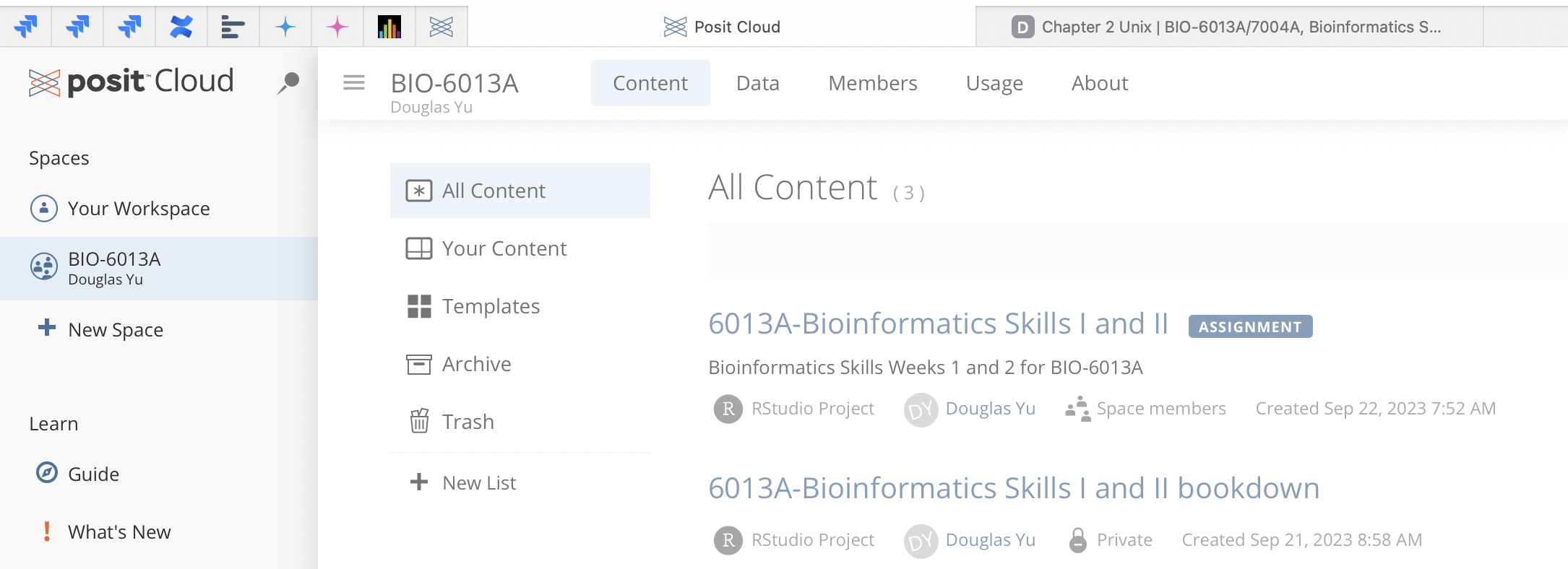
Figure 1.1: Screen for when you first login to Posit Cloud
Click on 1-2. 6013A-Bioinformatics Skills I and II:
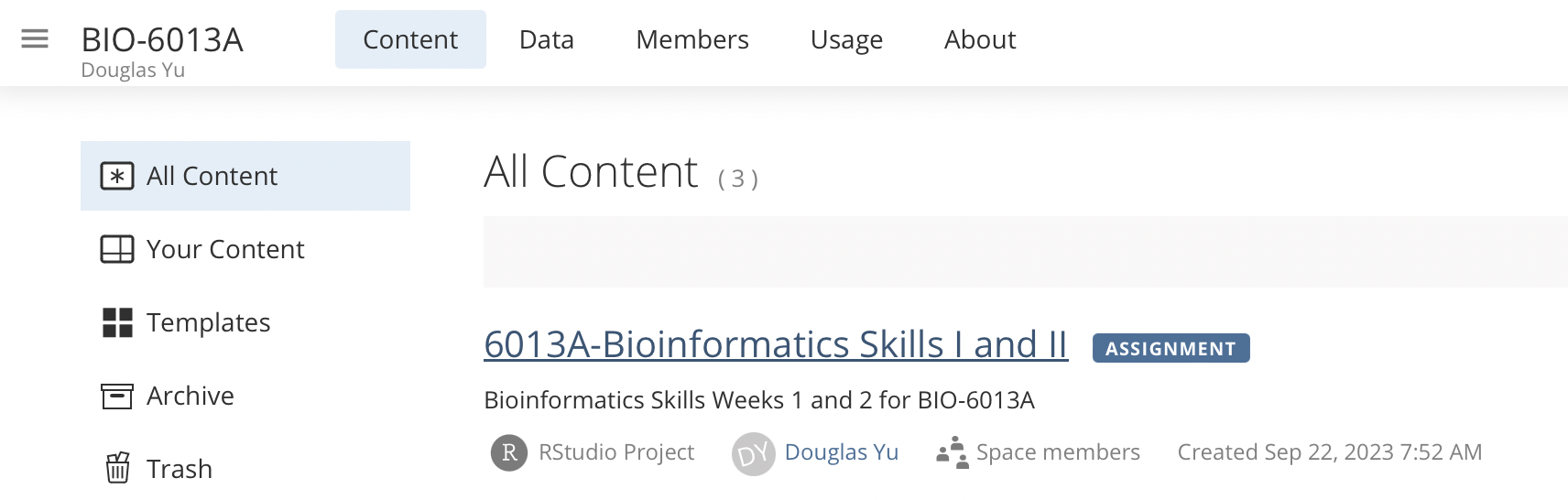
Figure 1.2: Click on the 1-2. 6013A-Bioinformatics Skills I and II workspace link
This will create a copy of the RStudio project, and it should look something like this.
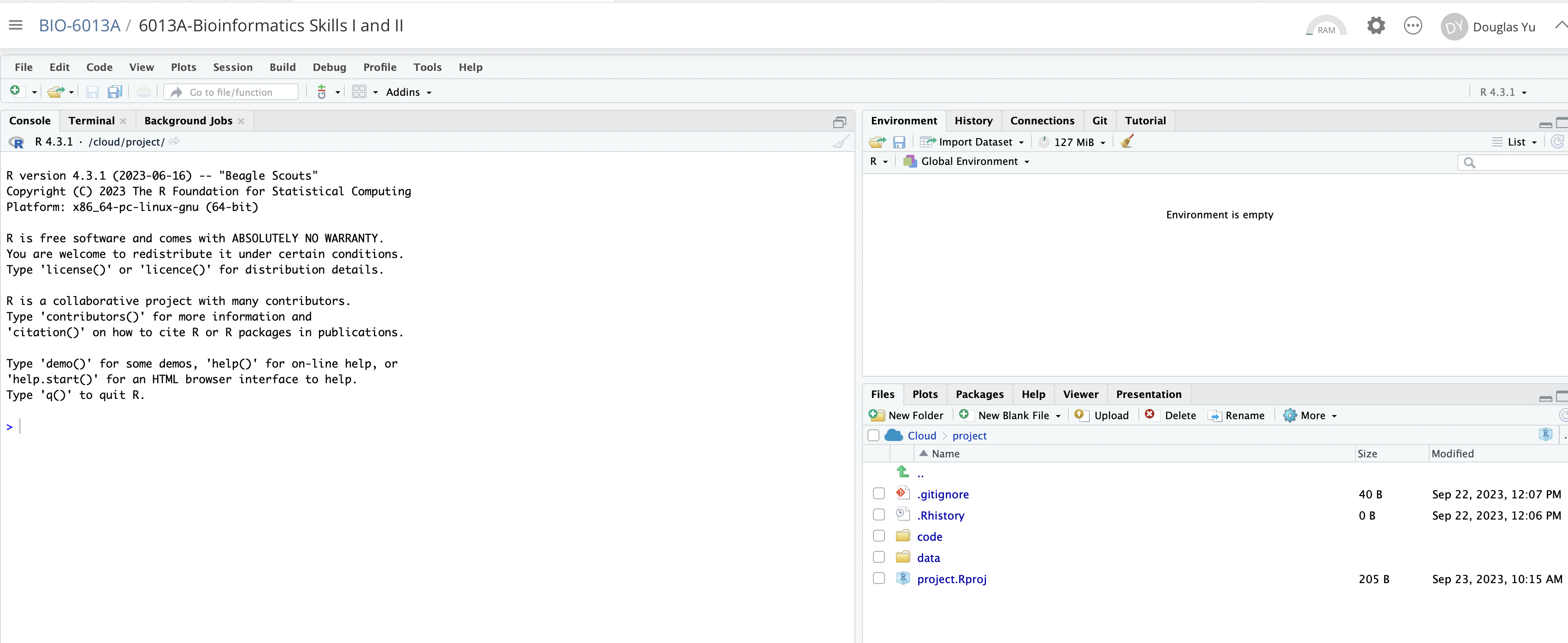
Figure 1.3: Default RStudio workspace
Go to Tools/Global Options and customise the workspace to look like this illustration. There are instructions on BIO-6013A Posit.cloud 20250905.pdf.
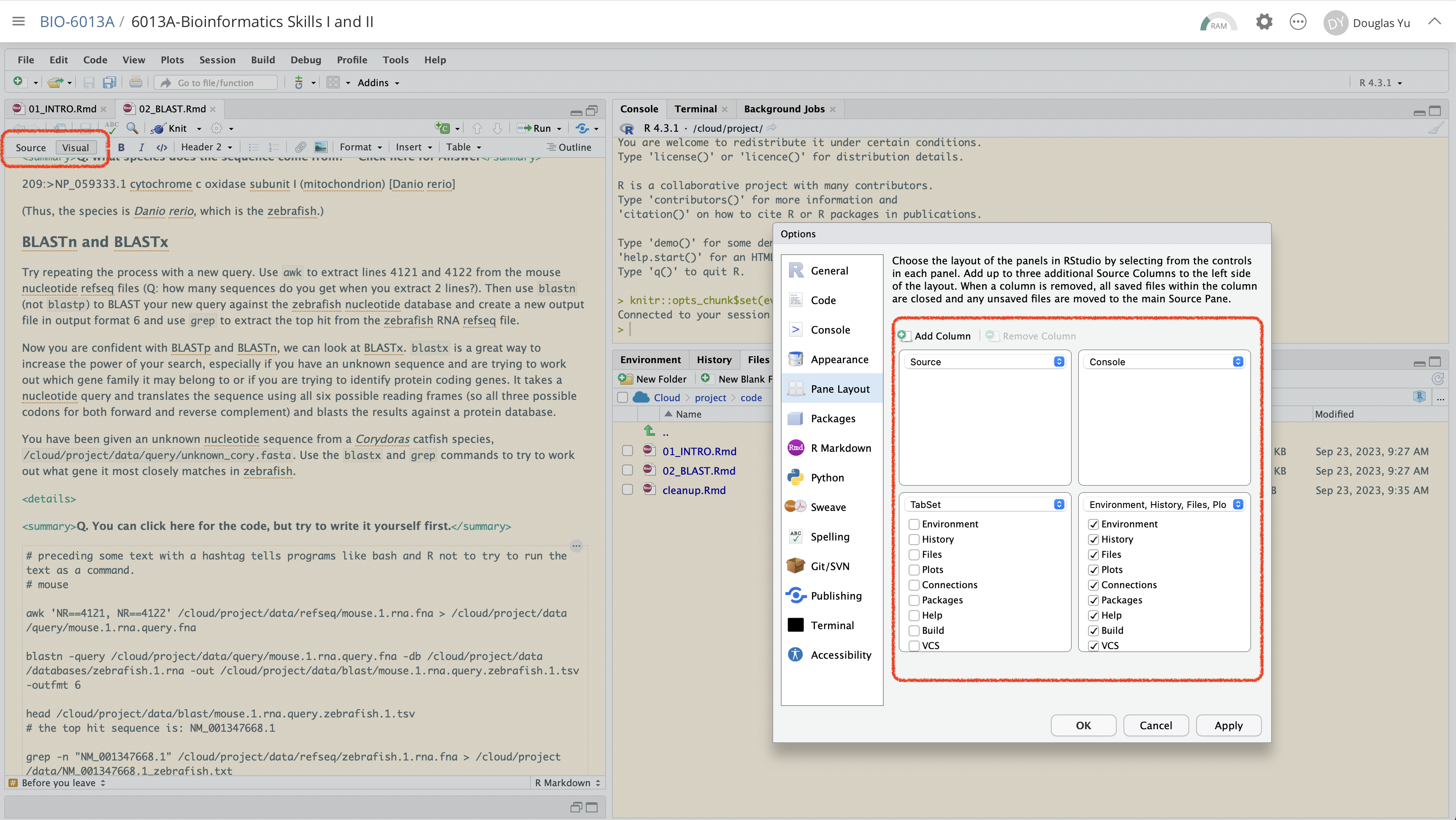
Figure 1.4: Customisation of the RStudio workspace
DON’T worry if you don’t understand everything
DO ask lots of questions!