Chapter 2 Unix
Unix is very likely the most fundamental skillset we can develop for bioinformatics (and beyond bioinformatics). Many of the most common and powerful bioinformatics approaches happen in this text-based environment, and having a solid foundation here can make everything we’re trying to learn and do much easier. This is a short introductory tutorial to help us get from being completely new to Unix up to being acquainted with it 🙂.
2.1 What is Unix/Linux?
UNIX is a computer operating system. It was first developed in 1969 at Bell Labs. Unix is written in the programming language C. Unix is proprietary software, whereas Linux is basically a free and open-source version of Unix. Most supercomputers run Linux. Operationally Linux is almost identical to Unix, and so we refer to it under the umbrella term of “unix-like” systems. The ‘Li’ in Linux is from the person who led its creation, Linus Torvalds.
2.1.1 Some terms
Here are terms and concepts worth knowing.
| Term | What it is |
|---|---|
| shell | The environment in which we communicate with a computer. A shell where you are pointing and clicking with a mouse is a Graphical User Interface (GUI) shell. A shell with only text input and output is a Command Line Interface (CLI) shell. A CLI shell has an associated programming language. |
| server | the computer where we host the data and programs that we are running. A server could be local, that is your own PC, or you could use a ‘remote’ server (a computer running in some other physical location), and you communicate with the remote server using your local PC. The reason to use a remote server is that they can be big computers that require a lot of power and cooling, which is most efficiently provided in specialised buildings. Another reason to use a remote server is that they can accommodate multiple users, and specialist administrators can be in charge of installing and maintaining one set of programs that are available to all users. |
| bash | the most common CLI shell used in unix-like OSs. the sh in bash stands for shell. You are using a combination GUI/CLI shell (called RStudio) running on your local PC to communicate with the Posit Cloud remote server, which runs R, bash, Python, C, and many, many programs that you link together with a series of commands, called a script. Thus, we say “We write bash scripts to run on the Linux server.” |
| terminal | In the 1960s, the word terminal referred to TV+keyboard setups at the ends of long cables that were attached to a big “mainframe” computer, usually in another room in the same building. The word terminal means ‘end’. Now that we use the internet to connect to remote servers, which could be a continent away, the terminal is just an app on your personal computer that runs a CLI shell (mimicking the old TV+keyboard setups). Inside the RStudio GUI shell running locally on your PC, you will open multiple Terminals to communicate with different Posit Cloud servers. |
| flag | a way to set options for a function, a specific type of argument usually preceded by a - (a dash) |
Note
You are familiar with using a GUI (Windows, iOS, Android, and MacOS are all GUIs), but to program a computer, you need to use a CLI (command line interface).
2.2 Why Learn Unix?
Most sequencing data files are large and require a lot of computer memory (RAM) to process. As a result most of the work that bioinformaticians do is not hosted on their own laptops or desktops. Instead, they “remote-connect” to high performance supercomputers or computer clusters. Almost all of these high performance computers use “Unix-like” operating systems, the most common of which is Linux.
As stated above, Linux is free and open-source so there are lots of developers for it, which has helped Linux become stable, secure, reliable, and efficient.
Today, you will get some experience with using a Linux OS. By logging into posit.cloud in your browser, you are connecting to the company Posit’s supercomputer, which runs Linux, and on top of Linux, Posit lets you run RStudio, which is a GUI for the statistics program called R. (Confusing? Yes. Linux is an operating system with a CLI shell, on which the RStudio GUI-shell runs, to make it easier to run the R language CLI shell.)
When you click on RStudio’s Terminal tab, you get access to a Linux CLI bash shell, where you can execute commands and functions directly in Linux. (yes, now you have gone from RStudio’s GUI back to the Linux CLI). All these different shells give us the ability to use multiple programs & programming languages.
Note
This series of practicals is designed for you to have a first introduction to Bioinformatics. It’s about exposure, not memorising or mastering anything. Don’t worry about the details!
2.3 Getting started
Before we get started we need a terminal to work in.
- Click on the
1-2. 6013A-Bioinformatics Skills I and IIRStudio Project in yourBIO-6013Aworkspace - Click on the
Terminaltab next toConsoletab in the RStudio GUI. This opens a command-line Shell
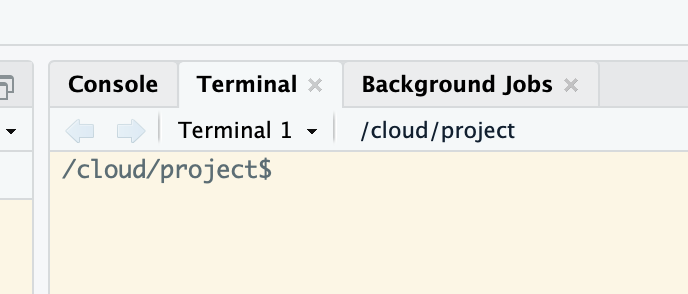
Figure 2.1: Here is an example of the Terminal tab, right next to the R console
This is our “command line” where we will be typing all of our commands. We type our commands in a language called
bashThe $ is where you start typing from, left of this it tells your
working directory, which is the folder you are currently in.If you need to, you can exit the Terminal and start a new session.
2.4 A few foundational rules
Spaces are special and break things apart. As a rule it is better to have functions and file names with dashes (-) or underscores (_) where you want space to be. Thus, “draft_v3.txt” refers to one file, while “draft v3.txt” refers to two files: draft and v3.txt.
The general syntax on the bash command line is:
command argument. Argument is a special term, and it means all the extra text bits that customise your command. This is similar to R except we don’t use brackets e.g. in R we put the arguments inside parenthesescommand(argument)Arguments can be optional e.g. if there is a default argument you may not have to write anything. Some functions require that arguments be specified. Again this is just like R.
2.5 Let’s get started
We will perform a very simple function and get a flavour of the similarities and differences to working in R.
date is a command that prints out the date and time. Type date into your terminal
This prints out the date/time in UTC format
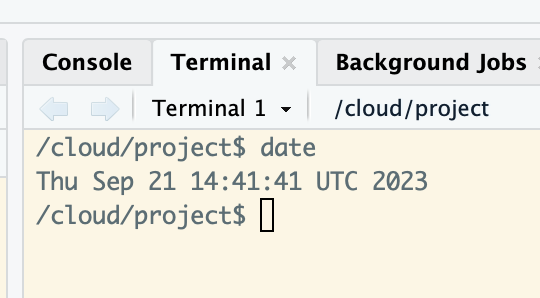
Figure 2.2: It should look like this:
Now let’s add an argument to the date command to ask for the date next Tuesday. date is the command, and --date="next tue" is the argument that causes the date command to modify its output. This argument is optional, as you have seen. Often, commands have required arguments.
The date command can do lots of things. You can learn more about about it here.
Occasionally and alternatively, you set an environmental variable to get a command to function differently. For instance, we might want to tell the computer that we are in the London time zone. We do it this way:
and if we want to find the time in Paris
2.5.1 Downloading data
We will start by typing in an instruction to download data from an online data repository, unpack the contents, and inspect it.
curlis a command line tool for transferring data to and from a remote computer server. Here we will use this to download data from an online repository called Figshare, and the-oargument sets the filename of the downloaded file (i.e. you can choose what to name the downloaded file).tarunpacks and uncompresses the data from a tarballed and compressed file format. A compressed file format (known as gzipped) makes a large file smaller for download. A tarball format makes many individual files appear as one single file. In this example, you have downloaded a whole directory with over a hundred individual files, and Figshare has tarballed and compressed the directory so that it is easy to download. You therefore need a command to extract the files from the tarball and unzip the files Can you guess which two arguments of the four heretar -xzvftell the computer to do these two things?rmremoves the original downloaded file, which you had calledunix_intro.tar.gzafter untarballing and extracting, we have a new directory called
unix_intro/. Can you find it in the Files tab of RStudio?ls -llists the files in the working directory, and the-lasks for a particular format that I like. Can you see the new directory calledunix_intro?cdchanges your working directory so we land in the new folder we have made. # When we write the name of a directory in Unix, we have the option to add a/at the end of the name. This slash is only decorative, but it’s useful when you are reading bash scripts.
Use the copy icon in the top right of the code block to copy all 3 commands and paste them into the Terminal. If this seems onerous to you, you are right. There is a keyboard shortcut for sending commands to the terminal. On Macs, it is opt-cmd-enter. On Windows, it is ctrl-alt-enter. You can find these keyboard shortcuts (and many others) under Tools/Keyboard Shortcuts Help/ and looking for Send to Terminal under the Execute submenu. Alternatively, you can read and type the command, which will help you learn the command better.
curl -L -o unix_intro.tar.gz https://ndownloader.figshare.com/files/15573746

tar -xzvf unix_intro.tar.gz

rm unix_intro.tar.gz

ls -l

cd unix_intro/
Check each command line has run, in the example above you might find that the last line to change directory doesn’t run until you hit enter inside the Terminal
2.5.2 More functions
Before the next step, make sure that you are in the unix_intro/ directory. You should see unix_intro$ in the command line.
Unlike date, most commands require arguments and won’t work without them. head is a command that prints the first lines of a file, so of course it requires the filename:
ls -l # do you see the file called example.txt?

# if I precede a line with # (a hash), then bash knows to ignore it. This is how we can add comments inside a script

head example.txt
Here “example.txt” is the required argument, and in this case it is also what’s known as a positional argument. Whether things need to be provided as positional arguments or not depends on how the command or program we are using was written.
Sometimes we need to specify the input file by putting something in front of it (e.g. some commands will use the -i flag, but it’s often other things as well).
Q. What’s in the text file? - Click here for Answer
Pretty boring, each line contains the text “This is line” followed by the line number e.g.
- This is line 1
- This is line 2
etc.
There are also optional arguments for the head command. The default for head is to print the first 10 lines of a file. We can change that by specifying the -n flag, followed by how many lines we want:
How would we know we needed the -n flag for that? There are a few ways to find out. Many standard Unix commands and other programs will have built-in help menus that we can access by providing –help as the only argument:
Read the help menu for the command head. It explains the default behaviour (show the top 10 lines) and describes the arguments.
Again this is very similar to the logic in which R commands are structured e.g. ?ggplot The syntax is similar even if the specific icons or arguments are different.
Remember just like with R, one of your best friends is Google! As you get familiar with any language or OS we might remember a few flags or specific options, but searching for options and details when needed is definitely the norm!
2.6 Unix File Structure
There are two special locations in all Unix-based systems: the “root” location and the current user’s “home” location. “Root” is where the address system of the computer starts; “home” is usually where the current user’s location starts.
Just to be awkward, Posit Cloud actually has us working in a different location “Cloud”, which is inside Root but separate to home, which would be in the “Users” folder.
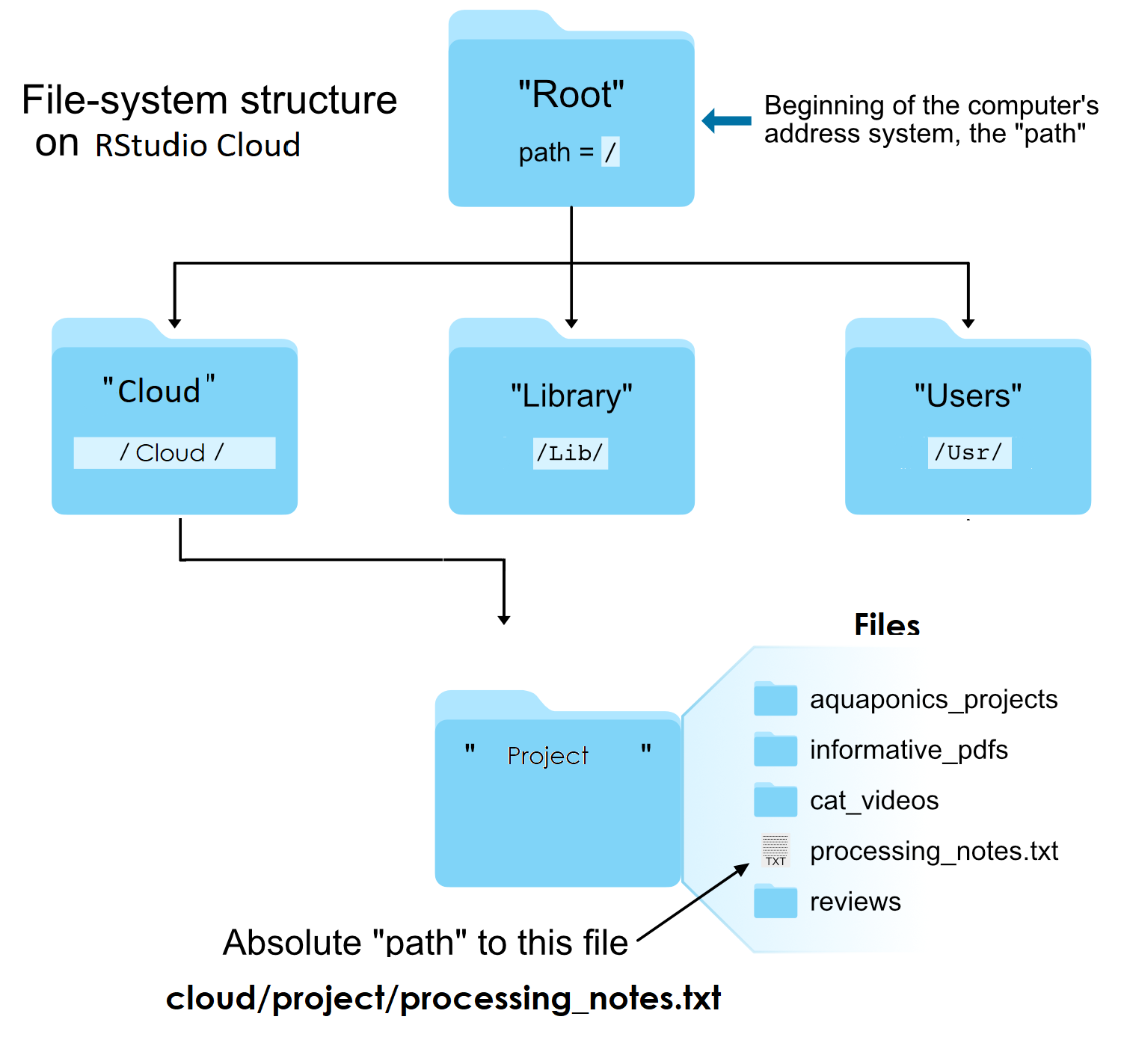
We tell the command line where files and directories are located by pre-pending the file name with the list of directories that hold them, known as the file’s “path”. If we use the pwd command (for print working directory), we can find out what the path is for the directory we are sitting in. Our working directory is also visible to the left of the $ in the command line
And if we use the ls -l command (for list), we can see what directories and files are in the current directory we are sitting in. (Note the -l argument) (also, try ls –-help) (that’s 2 dashes in front of help)
Note
Why is it important to know this? Usually when you are working on a Unix-like environment there is no GUI (a click and point interface), and all commands have to be submitted through the terminal. So you have to get used to navigating directories with typed commands, and it’s useful to know what the standard hierarchy is and where you happen to be at any given moment.
2.7 Absolute vs relative file paths
You should be used to these concepts from your work with R projects.
There are two ways to specify the path (address) of the file we want to do something to:
An absolute path is an address that starts from an explicitly specified location: usually the “root”
/or the “home”~/location. (Side note, because we also may see or hear the term, the “full path”, is usually the absolute path that starts from the “root” /.)A relative path is an address that starts from wherever we are currently sitting (the working directory). For example, let’s look again at the head command we ran above:
What we are actually doing here is using a relative path to specify where the “example.txt” file is located. This is because the command line automatically looks in the current working directory if we don’t specify anything else about its location.
We can also run the same command on the same file using an absolute path - note Posit Cloud has a slightly unique set-up in that we start from a folder called cloud:
The previous two commands both point to the same file right now. But the first way, head example.txt, will only work if we are “sitting” in the directory that holds that file, while the second way will work no matter where we happen to be in the computer.
It is important to always think about where we are in the computer when working at the command line. One of the most common errors/easiest mistakes to make is trying to do something to a file that isn’t where we think it is. Let’s run head on the “example.txt” file again, and then let’s try it on another file: “notes.txt”:
Here the head command works fine on “example.txt”, but we get an error message when we call it on “notes.txt” telling us no such file or directory. If we run the ls command to list the contents of the current working directory, we can see the computer is absolutely right – spoiler alert: it usually is – and there is no file here named “notes.txt”.
The ls command by default operates on the current working directory if we don’t specify any location, but we can tell it to list the contents of a different directory by providing it as a positional argument:
By running ls without each argument, can you understand what the -l and -F arguments are doing?
We can see the file we were looking for is located in the subdirectory called “experiment”. Here is how we can run head on “notes.txt” by specifying an accurate relative path to that file:
2.8 Moving around
We can also move into the directory containing the file we want to work with by using the cd command (change directory). This command takes a positional argument that is the path (address) of the directory we want to change into. This can be a relative path or an absolute path. Here we’ll use the relative path of the subdirectory, “experiment”, to change into it
Great. But now how do we get back “up” to the directory above us? One way would be to provide an absolute path, like cd /cloud/project/unix_intro, but there is also a handy shortcut. .. which are special characters that act as a relative path specifying “up” one level – one directory – from wherever we currently are.
So we can provide that as the positional argument to cd to get back to where we started:
Moving around the computer like this might feel a bit cumbersome and frustrating at first, but after spending a little time with it, you will get used to it, and it starts to feel more natural.
Note
One way to speed things up is to start using tab to perform tab-completion often this will auto-complete file names! Press tab twice quickly and it will print all possible combinations.
2.9 Summary
While maybe not all that exciting, these commands really are the foundation needed to start utilizing the command line – which then gives us the capability to use lots of tools that only work at the command line to manipulate big data and to rapidly access and work with remote computers, and more!
2.9.1 Terms
| Term | What it is |
|---|---|
| path | the address system the computer uses to keep track of files and directories |
| root | where the address system of the computer starts, / |
| home | where the current user’s location starts, ~/ |
| absolute path | an address that starts from a specified location, i.e. root, or home |
| relative path | an address that starts from wherever we are |
| tab-completion | our best friend |
2.9.2 Commands
| Command | What it is |
|---|---|
| date | prints out information about the current date and time |
| head | prints out the first lines of a file |
| pwd | prints out where we are in the computer (print working directory) |
| ls | lists contents of a directory (list) |
| cd | change directories |
2.9.3 Special characters for the cd command
| Command | What it is |
|---|---|
| cd ~ | go to your home directory |
| cd .. | go to one level above current (working) directory |
| ls -lF . |
list files and directories in current directory. Normally, you don’t have to include the . character, but this is to let you know the meaning of the . dot. Some commands need you to say that you want to work on a file in this directory, and you use the dot to indicate that.
|
In a single session, you won’t get used to operating in bash, or moving around directories using just the command line. So if you think you are interested in developing your bioinformatic skills, carve out a chunk of time to practise.
Here is a link to a couple of extended tutorials you can bookmark if you want to explore this further:
2.10 Stretch yourself - optional extras to try a couple of other skills
2.10.1 Creation
I want to create a new directory, use mkdir to create a new directory called Code:
Make a new directory called TEST inside unix_intro/ - Click on the arrow for Answer
Note that I used a relative file path to create the TEST/ directory (because I first navigated to the location where i want the TEST/ directory) - but I could have also specified an absolute filepath to generate that folder in whatever location I want.
There are a few ways to make new files on the command line. The simplest is to generate a blank file with the touch command followed by the path (relative or absolute) to the file you want to create
Make a new text file inside the TEST/ directory, called data-science-class.txt - Click here for Answer
Note here I could just use ls to list all files and folders in a directory, but if i set the flag -l then it will produce a long list of files.
If the entry in the first column is a d, then the row in the table corresponds to a directory, otherwise the information in the row corresponds to a file.
The string of characters following the d in the case of a directory or following the first - in the case of a file represent the permissions for that file or directory - I won’t cover that here - but some of the links I provide go into more detail.